PlatformIO with VSCode
Installing VSCode
First, install VSCode:
- Windows: Install it from the Windows Store
- Linux: Follow the instructions at code.visualstudio.com
- macOS: Follow the instructions at code.visualstudio.com
Installing PlatformIO
To do this, launch VSCode.
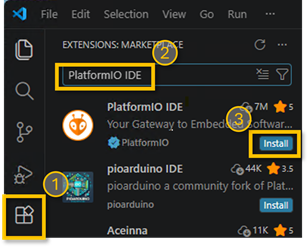
- Open the VSCode Extension Manager
- Search for PlatformIO IDE
- Install PlatformIO IDE
- Read the quick start guide
Create Your Project
To program your model, you now need a new PlatformIO project. Starting with version 0.7.0, the ftSwarm environment uses board definitions. The board definitions are not yet available online in PlatformIO. For the time being, you’ll need to include them locally in your project directory. To avoid errors, the easiest way is to use a ZIP file containing a starter project:
- Download pio-starter-0.8.0.zip
- Extract the ZIP file to a directory of your choice.
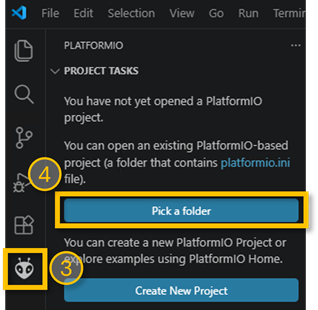
- Switch to VSCode and click the PlatformIO icon
- Under “Pick a folder,” select the directory you just created.
As a final step, you must select your controller type. At the bottom of the screen, you’ll find the PIO status bar. Click on the Project Environment and select your controller type:

Each controller type is displayed twice, e.g., ftSwarmRS and ftSwarmRS-DE. The first option compiles English-language firmware, while the second option displays output on the serial console in German.
Flashing a Test Program
The ZIP file also contains a ready-to-use main program src/main.cpp. It consists of only a few lines and launches the firmware. Let’s now flash it for testing purposes:

- Connect the controller to the PC using a USB cable and select the appropriate USB port in the status bar.
- Click the Upload button. The software will be compiled and flashed to the controller.
- Open the serial console and press the controller’s reset button. The firmware will initialize.
If you receive the error message “A fatal error occurred: This chip is ESP32-S3, not ESP32. Wrong –chip argument?“ while flashing your program, or if the firmware displays the error ”FATAL: Incompatible firmware hardware settings.” in the serial console after starting or resetting the controller, you must select the correct controller in the Project Environment.
The following buttons are available in the status bar:
 or Ctrl + Alt + B compiles your program.
 or Ctrl + Alt + U flashes your program to the controller.
 or Ctrl + Alt + S launches the serial monitor.